One picture → many sheets
Print a large image on multiple pages
Page Tiles splits one image or PDF page across ordinary A4, A3, Letter or Legal sheets. Pick the finished size, check every sheet, then print on the printer you already have.
$2.99 · One-time purchase · Works offline · No account · macOS 12+
- OpensJPEG · PNG · HEIC · TIFF · PDF
- PaperA4 · A3 · Letter · Legal
- Size inSheets, mm, cm or inches
- OutputTiled PDF or straight to print
How it works
Open the file, choose a size, check the sheets and print
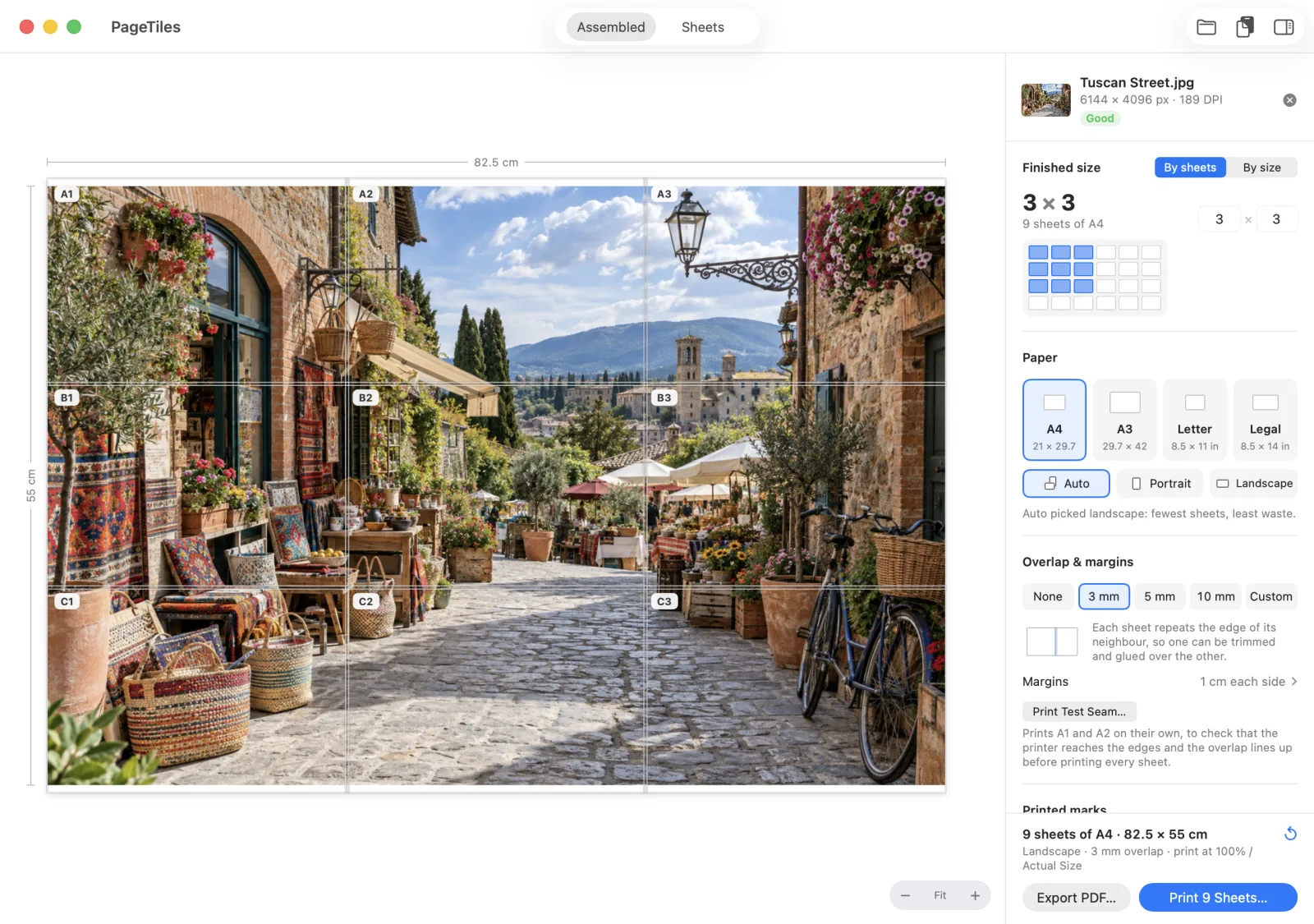
The window shows the finished size, sheet count and image resolution as you change the layout.
- 1
Open a picture or a PDF page
Drag a file onto the window, use File › Open, or paste an image with ⌘V. For a multi-page PDF, step to the page you want.
- 2
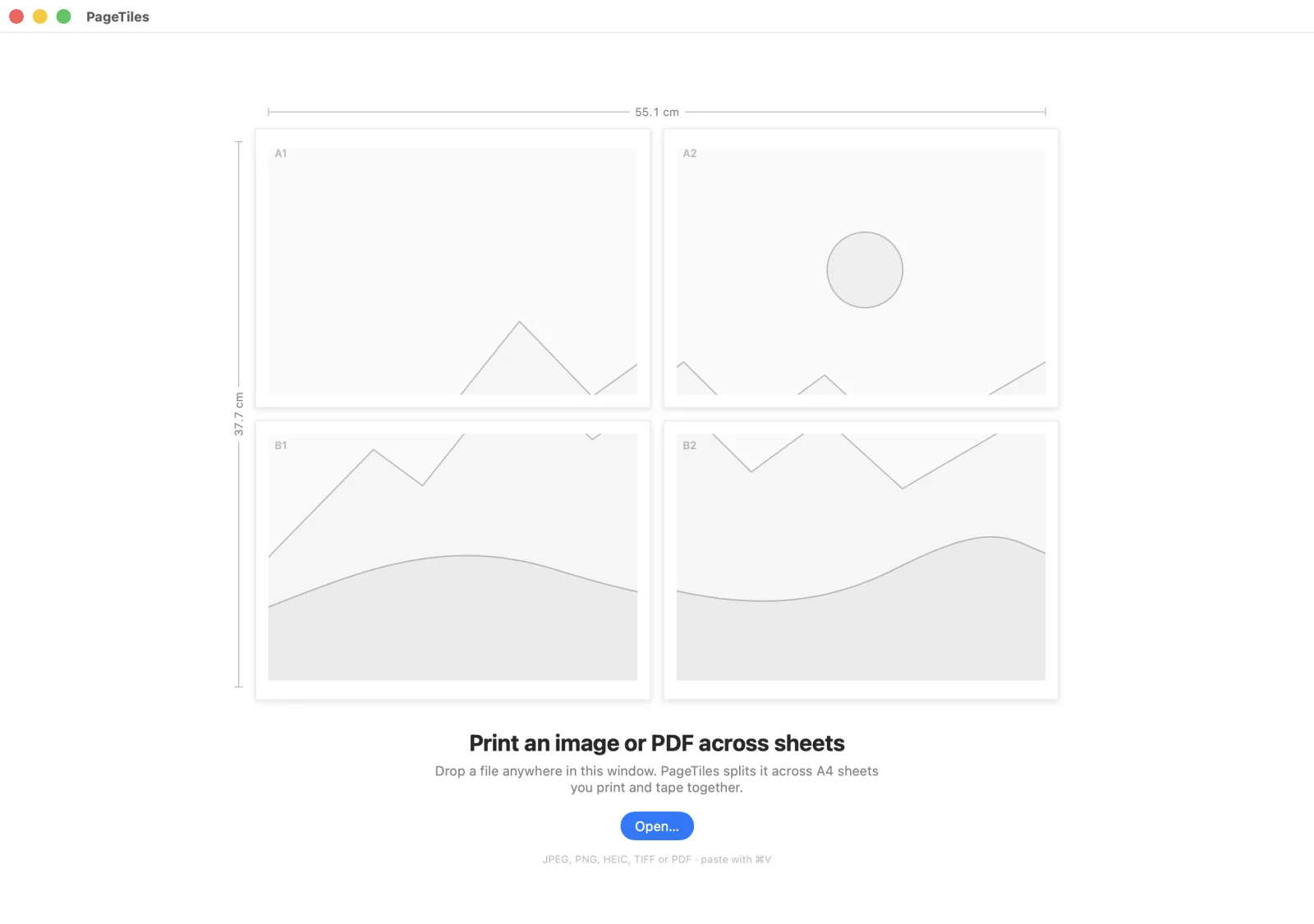
Choose the size
Set it by sheets (3 wide × 2 tall) or by size (100 cm wide). Type either side and the other follows the picture, so nothing stretches.
- 3
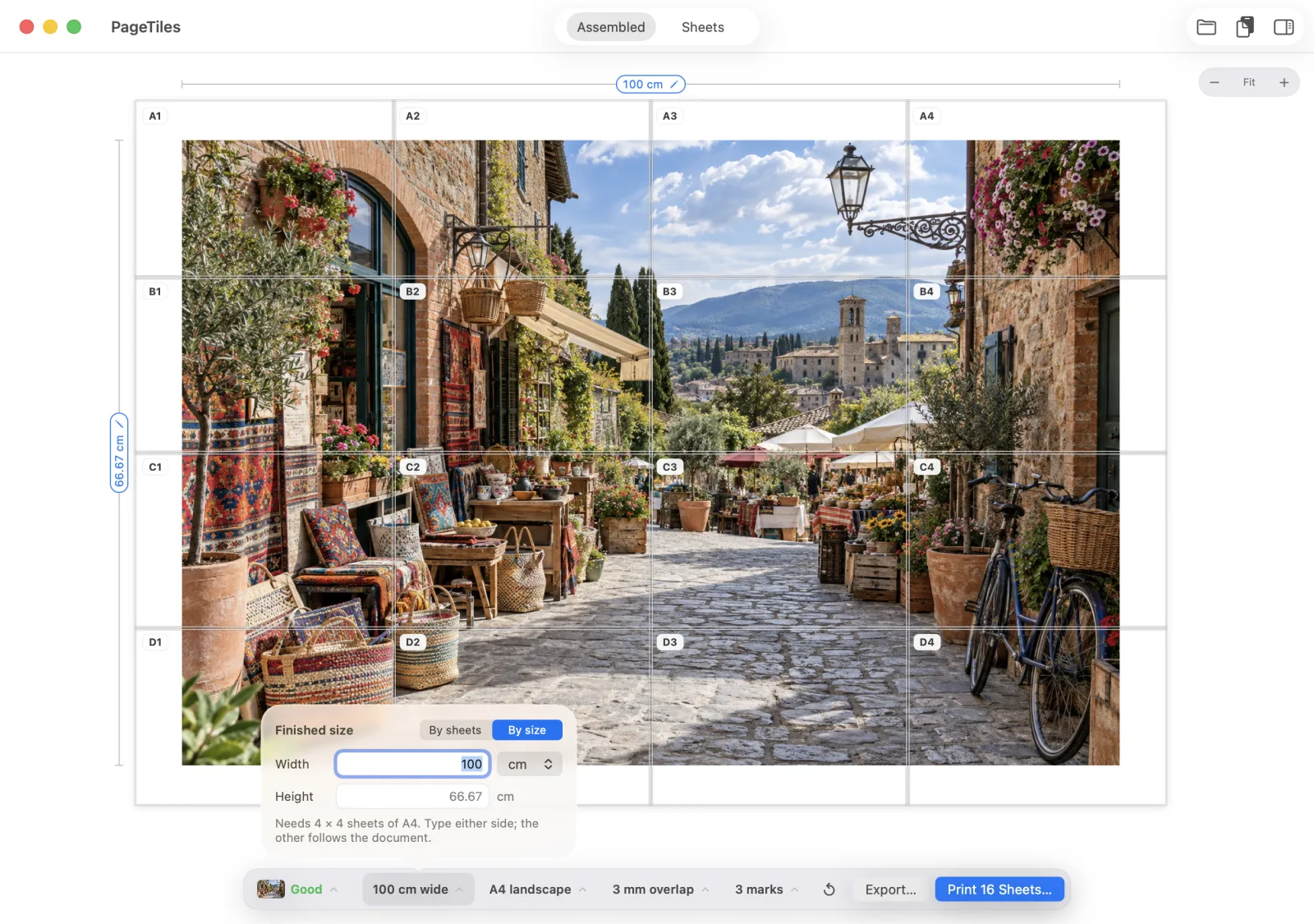
Check every sheet
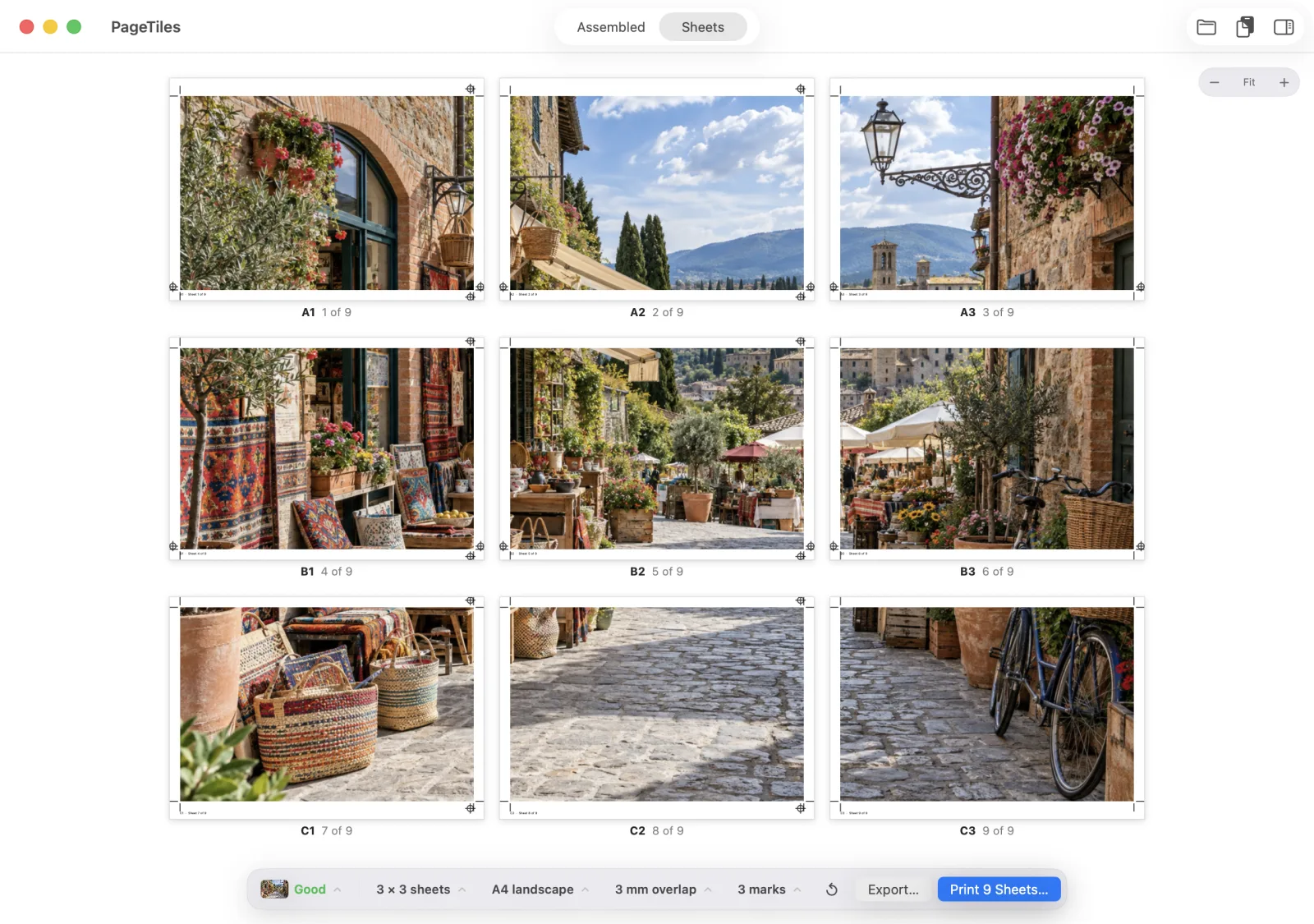
Switch to Sheets to see exactly what each page will print, with its label, overlap and marks. Auto orientation picks the layout with the fewest sheets.
- 4
Print, or export a PDF
Print through the normal macOS print panel, or export a PDF with one page per sheet. Print at 100% / Actual Size and the poster comes out the size you set.
Features
Controls for sizing, printing and joining the sheets
By sheets or by size
Choose a grid of sheets, or type the finished width or height in mm, cm or inches. Up to 100 sheets a side.
Auto orientation
Portrait or landscape, whichever needs fewer sheets and wastes less paper. You can still pick one yourself.
Overlap for gluing
Each sheet can repeat the edge of its neighbour: none, 3, 5 or 10 mm, or your own amount. Trim one sheet and glue it over the next.
Cut and alignment marks
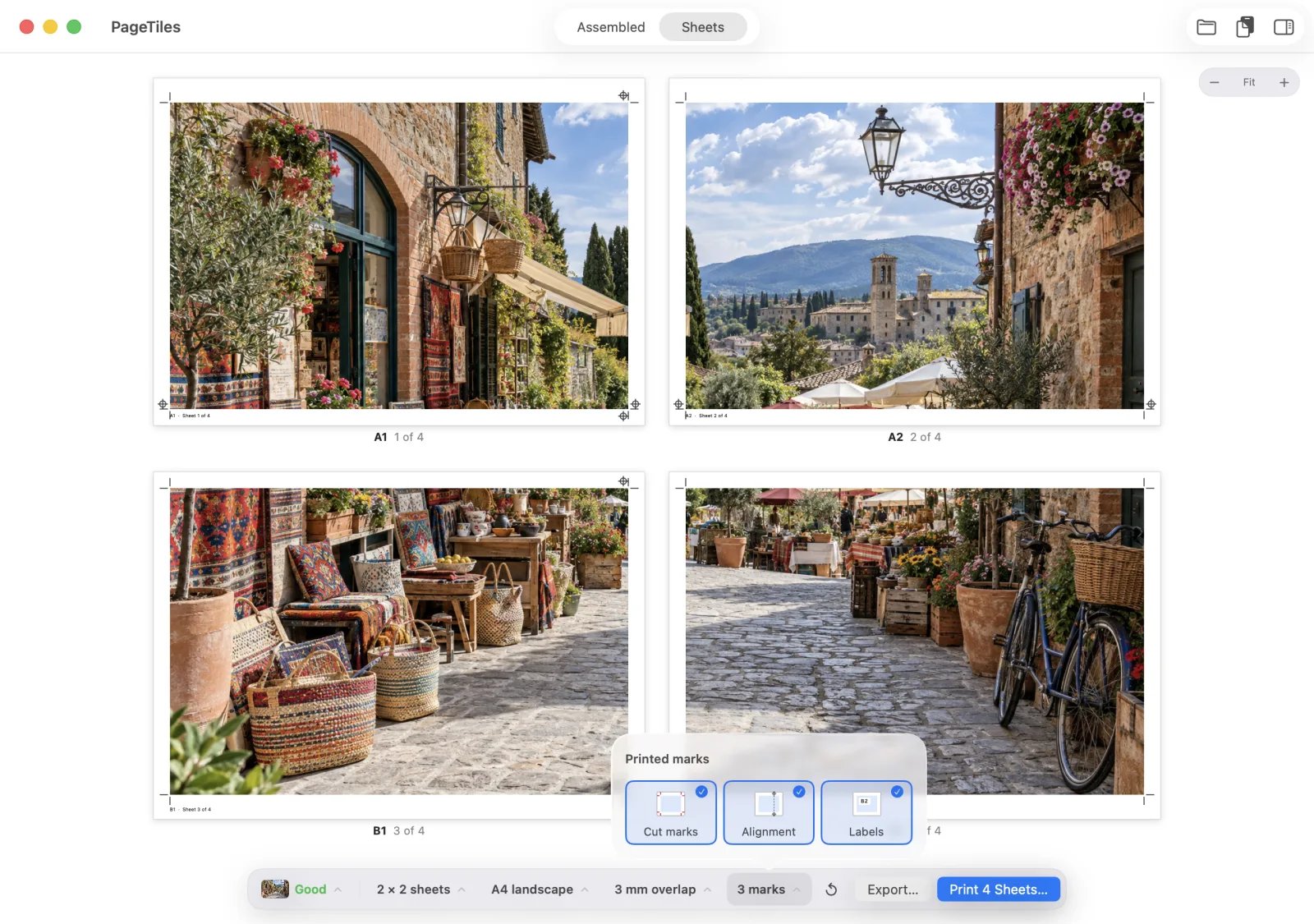
Cut marks show where to trim. Alignment marks sit at each end of a seam so neighbouring sheets line up.
Sheet labels
Every sheet is labelled A1, A2, B1 in the margin, with “Sheet 3 of 9”, so a pile of paper goes back together in order.
Test before you print them all
Print Test Seam prints A1 and A2 on their own, so you can check the edges and the overlap before using a whole stack of paper.
Printer margins
Margins start at 1 cm a side. Match a Printer sets them to how close your printer says it can print, and warns you when they’re too narrow.
Reprint one sheet
Smudged B2? Select it and choose Print Only B2, instead of printing the whole poster again.
Private and offline
Files are processed on your Mac. The app has no account, upload, subscription or analytics, and it never changes the original file.
Before you print
See if your picture is sharp enough at that size
A photo has a fixed number of pixels. Page Tiles calculates the DPI at the finished size and grades it Blurry, Fair, Good or Sharp. How to enlarge without a blurry print.
- Blurry under 100 DPI Soft even from across a room. Go smaller or find a bigger file.
- Fair 100–149 DPI Fine on a wall seen from a few steps back.
- Good 150–299 DPI Looks clean at arm's length.
- Sharp 300+ DPI As sharp as a normal photo print.
- Vector PDF pages PDFs made on a computer print crisp at any size. A scanned PDF is only as sharp as the scan.
Also good for
Patterns, plans, banners and classroom prints
- Sewing patterns at homeTile a copy-shop A0 pattern onto A4 or Letter at exactly 100%, and check the test square.
- Plans and blueprintsA1 and A2 drawings on A4 or Letter, at 1:50 or 1:100, with lines that stay crisp.
- BannersBirthday, welcome and sale banners in a single row of sheets, from 1 to 3 metres long.
- Classroom postersMaps, timelines and anchor charts on the school printer, big enough to read from the back row.
Guides
Guides for printing big on small paper
Instructions for Page Tiles, Acrobat Reader, Preview and Windows printing tools.
- Print a large image on multiple pagesThe full walkthrough: size, sheets, overlap, printing at 100%, and putting it together.
- Print a poster on multiple pagesStandard poster sizes, how many sheets each needs, and how to hide the seams.
- Split an image for printingPrintable margins, overlap, marks and labels for each piece of the image.
- Enlarge an image to print bigHow far a picture can be enlarged before it looks soft, and what to do when it's too small.
- Print a large PDF on multiple pagesTile one big PDF page, like an A0 plan or a pattern, onto A4 or Letter at its real size.
- Print an image on 4 A4 pagesWhat a 2, 4, 6 or 9 sheet grid prints to on A4 and Letter, and how to set it up.
- Assemble a tiled posterOrder, trimming, lining up and gluing: how the printed sheets become one poster.
- Print at actual size on a MacWhere 100% and Actual Size hide in each print dialog, and how to check with a ruler.
- Poster size calculatorSheets needed, finished size and print quality for your picture, before you open anything.
- Poster apps for Mac comparedPage Tiles, SplitPrint, PrintTiler and others: price, macOS version, and what to test before you buy.
Common questions
Does it work with my printer?
Page Tiles prints through the standard macOS print panel, so it works with any printer your Mac can already print to. It installs no drivers and needs no printer account.
Can I print without borders?
Most home printers can’t print right to the edge of the paper, so Page Tiles leaves a margin and uses overlap to hide the seam. It doesn’t promise borderless output.
What does it cost?
A one-time purchase on the Mac App Store, which shows the price in your local currency. No subscription and no in-app purchases.
Which Macs does it run on?
Any Mac with macOS 12 Monterey or later, Apple silicon or Intel.